


Most people don’t think about a WordPress backup solution until they’re staring at a broken site at 11 PM, and then they want to know how to recover a database they never actually tested. In reality, that’s the real problem with backups in 2026. It’s not that people don’t know they need a perfect WordPress backup solution; rather, it’s that they configure a WordPress backup plugin once, assume everything is running smoothly, and never look twice, at least not until something goes wrong. So what about that backup you were counting on? In most cases, either it’s sitting on the same server that just crashed, or worse, the restore fails because you never actually ran one.
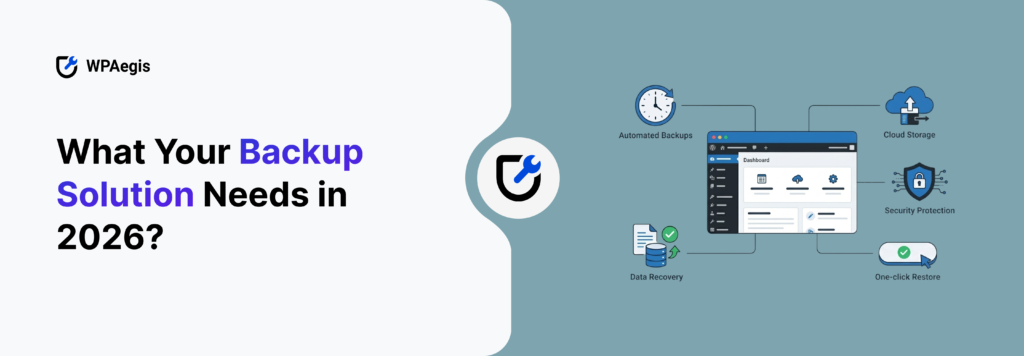
Therefore, a reliable WordPress backup solution isn’t just about scheduling automated backups and calling it a day. Instead, it means choosing the right WordPress backup solution, allowing offsite storage destinations, understanding how incremental backups reduce your exposure, knowing your restore options cold, and finally, matching your entire setup to the real risk profile of your site.
To that end, this guide breaks down the essential features every WordPress backup solution should deliver in 2026, not what looks impressive on a feature checklist, but rather what actually holds up when you need it most.
1. Usability
Usability isn’t a ” nice-to-have” in a WordPress backup solution. It’s the difference between having backups and being able to use them when your brain is fried and a client is texting you screenshots of errors.
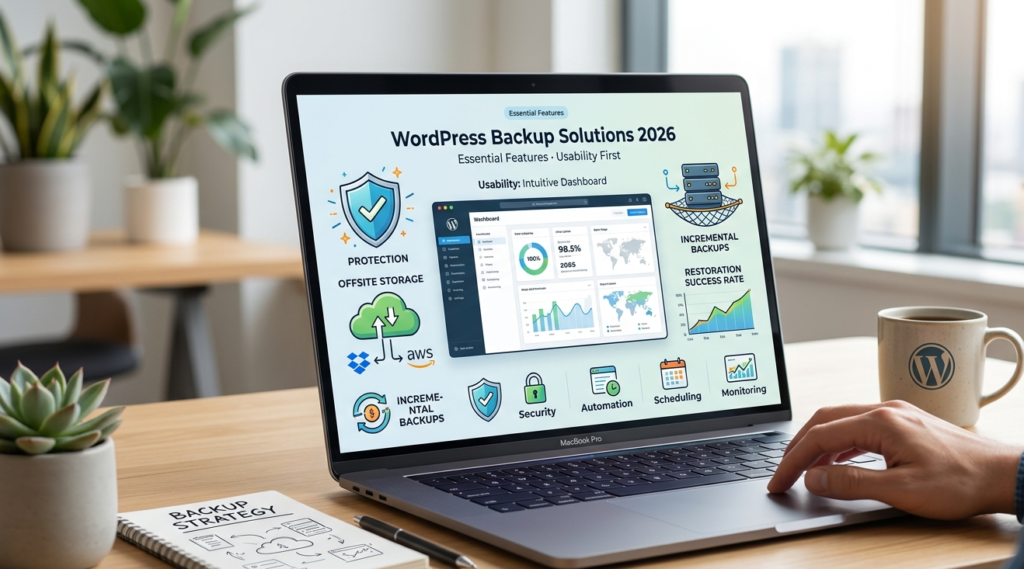
A good WordPress backup plugin should get you from install → first successful offsite backup in under 10 minutes. If it takes longer, people procrastinate. And procrastination is how you end up with “we’ll set it up later,” right up until the day you need it.
Onboarding Experience
The best tools now ship with setup wizards that ask the only questions that matter:
- Where do you want backups stored? (Offsite should be the default.)
- How often? (Daily is a minimum for most sites; more on that later.)
- What should be included? (Database + uploads + plugins + themes, at least.)
- Do you want email/Slack alerts when it fails? (Yes. Always yes.)
When I first used UpdraftPlus years back, the prompts were the first time I thought, “Oh, this is actually manageable.” Compare that to some older-school plugins where you get dumped into a settings page with 40 toggles and no guidance. People don’t read docs when they’re busy; instead of reading, they just click and click. So the defaults need to be sane.
Interface Quality
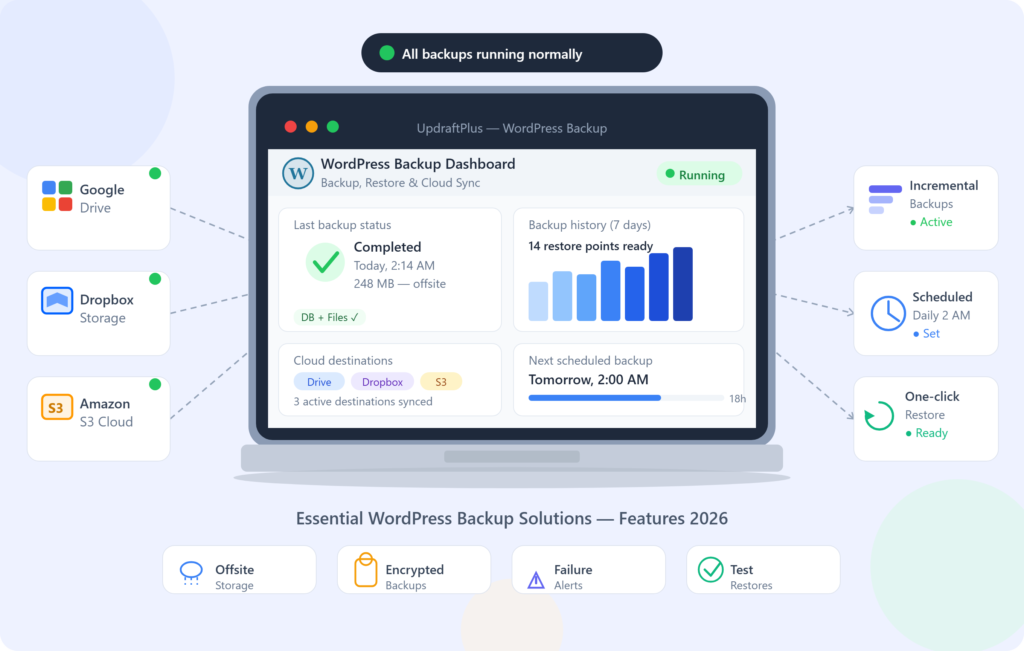
If the interface doesn’t clearly show the last successful backup, where it’s stored, and restore points, don’t trust it.
A clean UI should answer these questions at a glance:
- Did my last backup succeed?
- What exactly was backed up (DB, files, both)?
- How big is it?
- Where is it stored?
- Can I restore right now?
I’ve seen plugins that technically “work,” but the status is buried in logs. That’s fine for engineers who like tailing files. It’s terrible for site owners and most freelancers juggling ten clients.
Learning Curve
There’s always a learning curve once you leave “weekly full backups” and start doing grown-up stuff like:
- incremental backups
- excluding cache directories
- optimizing DB dumps
- staging restores
- multi-site handling
Workflow Efficiency
A decent database workflow in 2026 looks like:
- scheduled backups (DB more frequent than files)
- automatic offsite upload
- retention rules (keep last 14 daily + last 3 monthly, for example)
- failure alerts
- periodic test restores
If you’re manually downloading ZIPs every week “just in case,” you don’t have a backup strategy. You have a hobby, but stop treating backups like a hobby and start using WPaegis.
2- Performance
Performance is where backup plugins quietly wreck because in 2026, “it runs backups” isn’t enough. It needs to run backups without spiking CPU, timing out PHP, or turning your admin area into molasses.
Also: performance isn’t just speed; it’s predictability. If your backup runs fine on Tuesday and fails every Friday because traffic is higher, that’s not a backup system. That’s a coin flip. WPaegis runs incremental backups at the infrastructure level, with zero load on your WordPress install. No slowdowns. No timeouts.
Speed
Fast backups matter, but fast restores matter more.
A common mistake I see: people obsess over how quickly a backup completes, but they never measure restore time. Then a real incident hits, and they realize their restore process is basically:
Download backup from cloud storage
- unzip locally
- upload via SFTP (slow)
- Import the database in phpMyAdmin (error-prone)
- Hope the site comes back
- fix serialized URLs
- clear caches
If you want a north star: in a clean setup, I want a restore that’s one click or at least a guided flow that completes in minutes, not hours.
And yes, Wpaegis provides a premium backup solution to reduce downtime when bad things happen.
Step-by-step: how I test “speed” in the real world
When I’m evaluating a backup solution, I do this on a staging copy:
- Run a full backup at peak traffic (or simulate load).
- Note peak CPU and memory (host dashboards are fine; New Relic if you’ve got it).
- Time the backup creation + offsite upload.
- Restore to a fresh staging instance.
- Time to restore.
- Click through: homepage, login, search, contact form, checkout (if Woo).
If that restore test isn’t part of your selection process, you’re buying blind.
Uptime
Backups shouldn’t take your site down, not in any case, under any circumstances. Premium solutions love to advertise 99.9% uptime or “no downtime backups,” but the real culprit is often your environment: cheap shared hosting, aggressive PHP timeouts, slow disks, or a database that’s never been optimized.
What I do instead:
- Schedule file backups off-peak.
- Exclude cache folders, backups-of-backups, and giant log directories.
- Run DB backups more often but keep them lightweight.
- Prefer incremental backups where possible.
Scalability
As sites grow, backups get weird because of database bloat. WooCommerce tables get spicy, and membership sites accumulate metadata like barnacles. WordPress isn’t small anymore; approximately 861 million websites use WordPress. That scale is exactly why backup tools have had to evolve: more hosts, more configurations, more edge cases.
For scalability, the features I’d prioritize in 2026:
- incremental backups (especially for media-heavy sites)
- chunked uploads to cloud storage (avoids timeouts)
- separate schedules for DB vs files
- flexible retention policies
- support for large databases without choking
Lots of backups mean longer lists, more restore points to verify, and a higher chance that you’re keeping backups that are already infected or corrupted. I’d rather keep fewer verified restore points with clear dates than 180 mystery ZIPs.
Stability Notes
A backup plugin that breaks during WordPress core updates is a dealbreaker. Stability shows up in boring ways:
- backups still complete after a PHP version bump
- Restores don’t randomly fail after plugin updates
- logs are readable
- Support doesn’t blame your host for everything
3- Pricing
Pricing for WordPress backup solutions is messy because you’re not just paying for a plugin; you’re paying for a mix of:
- features (incremental, staging, migrations)
- support quality
- storage (sometimes bundled, often not)
- number of sites
- restore tooling
Cost Breakdown
In practice, you’ll see:
- Free plans: basic manual backups, limited schedules, fewer destinations.
- Paid plans: $50 – $200/year are common for a single site, depending on features and storage approach.
If the site is a brochure site that changes twice a month, paying top-dollar for real-time backups may be overkill. If the site is WooCommerce and you do 50 orders a day, paying for stronger restore tooling is a bargain compared to even one bad incident.
Pick a plan checklist:
- How often does content change? (posts, products, orders)
- What’s the cost of one hour down?
- How technical is the person who will restore it?
- Do you need staging restores or just production restores?
- Are you paying separately for cloud storage?
Value for Money
The best value isn’t “cheap.” It’s less time to recover.
UpdraftPlus is a good example of why paying can make sense: it supports a pile of destinations (Google Drive, Dropbox, Amazon S3, etc.), and that flexibility matters when a client already has an approved vendor list. Also, good products reduce human error. That’s value.
I’ve seen teams spend $0 on backups and then burn 10 billable hours trying to reconstruct a broken site. They didn’t save money; they just moved the cost into panic time.
Hidden Costs
Here’s where people get burned:
- Storage is “supported” but not included.
- Multi-site support costs extra.
- Incremental backups are paywalled.
- Restore tooling is limited unless you upgrade.
- Higher retention needs a pricier tier.
If you’re budgeting, assume you’ll pay for:
- plugin license
- storage (S3/Backblaze/Drive)
- time to do a quarterly test restores
Choosing the right backup tool is winning half the battle. WPAegis ensures your WordPress site is continuously protected with expert maintenance, secure offsite backups, regular recovery testing, and proactive monitoring. Because the true cost of a backup failure isn’t the subscription, it’s the downtime, lost revenue, and trust you can’t get back. Let our experts keep your website protected before disaster strikes.
4- Pros and Cons of a WordPress Backup Solution
Pros
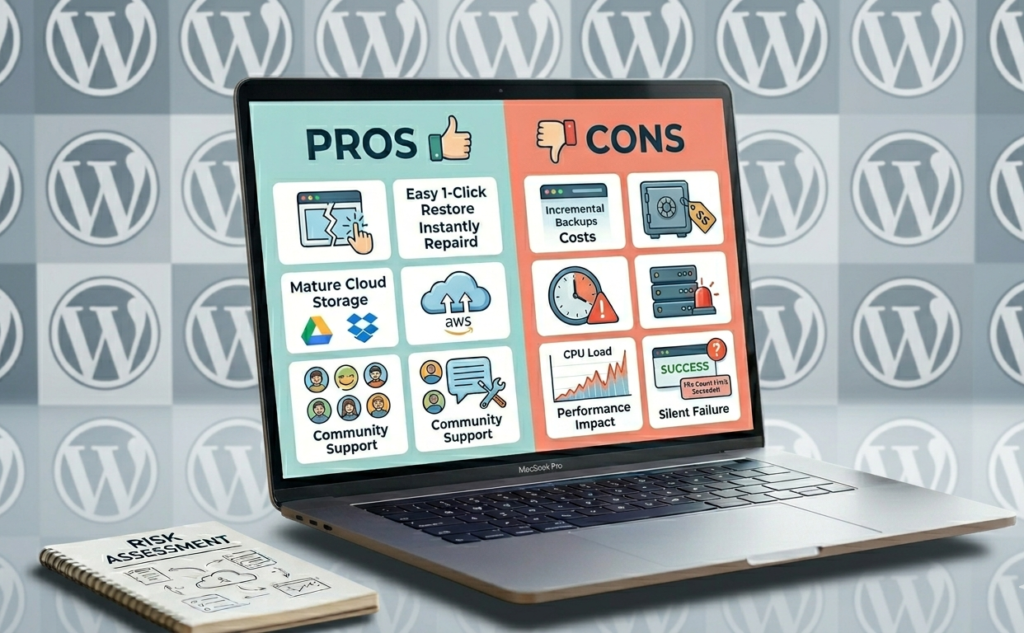
- Easy to use (when done right): Tools like UpdraftPlus have made setup accessible for non-technical users.
- Recovery is possible without heroics: One-click (or guided) restore reduces downtime.
- Offsite destinations are mature now: Cloud storage integrations are no longer exotic.
- Community + documentation can be a lifesaver: When something breaks at midnight, a big user base helps.
Cons
- Premium features can be expensive: Incremental backups, staging, or advanced restores often require paid tiers.
- Advanced settings are easy to misconfigure: Exclusions, retention, and schedules can create silent failure.
- Backups can hurt performance, especially on cheap hosting or when backups run during traffic spikes.
- False confidence is common: People see “last backup: success” and assume they’re safe without ever validating a restore.
5- Ecosystem
The backup plugin is only part of your system, but in 2026, the ecosystem around it, storage, monitoring, security, hosting, staging, matters just as much.
Integrations aren’t about bragging rights. They’re about fitting into how people already work.
- UpdraftPlus is popular because it integrates with cloud services like Google Drive, Dropbox, and Amazon S3.
- BackupBuddy is often brought up for restore-focused workflows.
API Availability
APIs are underrated until you manage multiple sites.
If you’re a developer or agency, API access lets you:
- Trigger backups before deployments
- Verify backup completion
- sync status to monitoring
- build client dashboards
Even if you don’t code, API support is usually a sign that the vendor expects serious use and has thought about automation.
Step-by-step: a deployment-friendly backup workflow (what I actually do)
- Push code to staging.
- Run automated smoke tests.
- Trigger a fresh production backup.
- Deploy to production.
- If errors spike, roll back or restore.
Extensibility Notes
Extensibility can mean:
- custom alerts (email, Slack, webhook)
- pre-backup hooks (clear caches, put site in maintenance mode)
- post-restore hooks (flush permalinks, rewarm caches)
One plugin schedules backups, another syncs media, another does security cleanup, and another does caching. Individually, they’re fine, but together, they create weird timing issues and file locks. I prefer fewer moving parts, even if it costs more.
6- Limitations
Every backup solution has limits, but the key is knowing them before you’re restoring under stress.
Known Issues
- Large archives time out on shared hosts.
- Giant databases can fail to export/import cleanly.
- Some restores are unreliable when server permissions are messy.
- Backups can be “successful” but incomplete (missing uploads, skipped tables).
I’ve seen a backup plugin skip a huge uploads directory because it hit a file count limit. The admin screen still showed “success.” The restoration day was not fun.
How to catch this early:
- Compare backup size week-over-week.
- Periodically verify the archive contains expected folders.
- Do a full restore test quarterly (minimum).
Missing Features
Free versions often lack:
- incremental backups
- advanced scheduling
- multiple destinations
- easy migrations
- strong support
The mistake is assuming the free tier covers business-grade requirements. In 2026, I’d choose a WordPress backup solution based on restore confidence, not brand recognition. If your backup tool can’t reliably restore your site quickly, it doesn’t matter how pretty the dashboard is. And if you’ve never tested a restore, you don’t know what you bought. With that said, if you’re picking from the mainstream plugin ecosystem and you’re willing to pay for the features you actually need, you can get to a very solid place.
FAQ
Access your WordPress dashboard and navigate to your backup plugin settings, then select ‘Backup Now’ or a similar option to back up your entire site.
No, WordPress does not back up automatically unless you have a backup plugin configured for this purpose.
Backups are copies of your website’s data, including files, databases, and configurations, which can be restored in case of loss or corruption.
You can find backup files in the storage location defined by your backup plugin settings, typically on cloud storage or a designated folder on your server.



Leave a Reply